Stop PC Crashes with WinZip System Utilities

Enter your email address:

Showing posts with label FREETOOLS. Show all posts

Tuesday, January 3, 2012

ADD ME ON GOOGLE PLUS WIDGET

Many readers asked me about a way to increase their Google Plus Readers. I suggest them to keep a widget as Add me on Google Plus. Widgetplus is providing such a wonderful widget, and hoping that Google will soon announce its official Google Plus Widget. Follow these few steps and increase your Google Plus friends.

How to Add Google Plus Widget on your blog and website

  1. Login to your Google Plus profile page. At the URL in your browser address bar, you can see a digit, which is your Google Plus ID (the numbers after the G# ). Copy it
    https://plus.google.com/u/0/stream?tab=G#…………………/posts
  2. Now go to widgetplus.com and click “Get widget” button. Then you will get a screen as given below in the picture. Paste your Google+ ID, select the width and click on Get Code.ADD ME ON GOOGLE PLUS WIDGET
  3. Copy the HTML code
  4. Now login to Blogger, go to Design and then Page Elements. Click on Add a Gadget. Select HTML/Javascript and paste the code in that box. Then save.

Thursday, July 21, 2011

PAID TEMPLATES OR FREE TEMPLATES TO CHOOSE

After the tintinabulation by successful social networking and post submission services, the theory of survival of a blogger has been under constant revolution. Content is not the King. Instead of that, Link is the King. You may wonder how effectively I can prove this. Recently I saw a blog with copied stuff from different blogs and have a PageRank of 4.I was shocked seeing this, because it was against all my concepts of Content building. When I contacted that blogger, she explained about her natural way to link posts and how she overcome total links to specific post relatively to the original stuff. While thinking about the content, next question came to mind was about Templates.

FREE TEMPLATES

Choose paid templates or Free Templates

There is nothing much to think. Choose free templates. Why? Two simple reasons. One is to reduce your cost in making a blog. Second one is that there is not much difference in paid template or free template from the angle of a Search Engine Bot.

Points to consider while selecting a Free Template

Check whether the Free Template delays your blog’s downloading time.

Check whether there is any hidden code included, that may display some unusual advertisements.

Check for links form that Template to any other website. There is nothing wrong in keeping a credit link of the original author.

Try to learn some HTML, then you can customize the Free Template and give a new look to it. Change the header image of your blog and make it in your own style.

Most of the Free Template offering sites are providing tips to edit, customize and to trouble shoot. Read it well before you install a Free Template.


Classic example of Free Templates is the one that is providing by Google Blogger. You can customize your blogs Template from your Dashboard as the way you wish.

So, don't waste money. If you have any doubt in fixing a Free Template, please feel free to ask me.


More to Read:

Tuesday, May 31, 2011

ADD COMBINED LIKE AND SEND FACEBOOK BUTTON

The Like button of Facebook lets a user share your content with friends on Facebook. When the user clicks the Like button on your site, a story appears in the user's friends' News Feed with a link back to your post. The Send Button allows users to easily send content to their friends. People will have the option to send your URL in a message to their Facebook friends, to the group wall of one of their Facebook groups, and as an email to any email address. While the Like Button allows users to share content with all of their friends, the Send Button allows them to send a private message to just a few friends. Then how about add a combined button of Like and send a post.

How to add Facebook combined like and send button to your blog

FACEBOOK BUTTON

STEP A
Log in to Blogger Account, go to Layout -> Edit HTML and check the box "Expand Widget Templates". Now, find any of this code in your  template.(Please make a backup copy of your template before doing any editing)

<div class='post-header-line-1'/>

OR

<div class='post-header-line'/>

STEP B
Then immediately after the above given code, paste the code given below.Please copy all code that is given in  red color.

<!--FACEBOOKCOMBINEDBUTTON-CODESTARTS-http://businessvartha.blogspot.com--><div style='float:right;padding:4px;margin-top:-4px;'><div id='fb-root'/>
<script src='http://connect.facebook.net/en_US/all.js#xfbml=1'/>
<fb:like font='' href='' layout='standard' send='true' show_faces='true' width='450'>
</fb:like></div><!--FACEBOOKCOMBINEDBUTTON-CODESTOPS—>


Something to edit:

  • You may change the position of this button by changing the right to left or center.

After pasting the code, check the preview of blog to see the position of counter  button. Then Save the template. If you feel any issues, please ask by commenting here.

Happy Sending…..


More Buttons to Add:

Thursday, May 19, 2011

BACKLINKS CHECKER

Backlinks are incoming links to a website or web page, which are also known as incoming links, inbound links, inlinks, and inward links. In the process of search engine optimization (SEO), the number of backlinks is one indication of the popularity website or web page. Google also gives much importance for quality backlinks while determining PR or PageRank of a  website. For a blogger, it is very essential to know the source of backlinks towards his blog or website. Finding the source of backlinks, helps to analyze the quality and build up more quantity of quality links.


How to check backlinks.

backlinks checker

Hereby providing a backlinks checker tool for all my blogging friends and readers. Simply enter the URL of the page or the main URL of your blog / website. Then click on check. All backlinks will be listed down to the table, here in the page  itself. Analyze it and increase the number of backlinks in natural methods.

Enter URL
  (eg. www.businessvartha.com)
 

Source: www.iwebtools.com

More to read:

Wednesday, January 26, 2011

Blogging for Gearlog (Anywhere / USA)

Another brilliant opportunity offered by Gearlog.com, a gadget blog from the editors of PCMag, is looking for a few good writers.This job opportunity we have seen in ed2010.com and thought to share this with all my readers. There is no need to explain about PCMag and its reputation in internet world.  So this offer can be considered as one of the best genuine offer that is open for bloggers. As they say about the job in above mentioned site,

CONTENT WRITERS

Job/Internship type: Freelance

Company/Publication Name: Gearlog.com

Location: ----

Description:  Gearlog.com, a gadget blog from the editors of PCMag, is looking for a few good writers. If you’ve got your finger on the pulse of technology, a creative and humorous approach to the world, and can write quick and clean copy, we’re looking for you.


Posted 1/19/11

OK to mention Ed?: Yes

Contact: Please send a resume and three clips to gearlog@pcmag.com with the subject line “Blogging for Gearlog.”

Source: http://www.ed2010.com/jobs/whisperjobs/2011/01/gearlog-com-tech-blogger

More to Read:

Tuesday, January 4, 2011

ADD NAVIGATION OR MENU TABS IN BLOGGER BLOGS

You have seen some beautiful Tabs on the header portion of our blogs.  These Tabs helps a reader to reach specific pages or posts in the blog itself. Many websites are providing hacking codes for making such a Navigation or Menu tab in Blogger Blog. But in this post I will explain a very simple method to display such Tabs. Only two conditions you had to fulfill to get this Navigation Menu on your blog. One condition is that, you must be using Blogger Template and other condition is that you must never forget to “Follow Us and submit this post to your Facebook, Twitter and Digg.

How to Add Navigation or Menu Tabs in a Blogger Template

Login to your Blogger Account> Go to Dashboard > Design> Page Elements. After reaching Page Elements look for “ Add a Gadget” tab down to the Header of your blog.

Have a look at the picture given here. Click on “ Add a Gadget”.

NAVIGATION MENU

After Clicking on “ Add a Gadget” select “ Link List”. Clicking on ‘Link List” will take you to Configure Link List. As you can see in the picture given below, type the URL of the page or post of your blog in the section “ New Site URL”. As an example, I have given my blog address there.

Now give a name for that URL at “New Site Name” . Please remember that this name will appear in the top section of the header bar as Navigation Menu Tab. So you must select appropriate name that will catch the attention of the visitor and guide him through the blog posts.

NAVIGATION WIDGET

After typing the URL at “ New Site URL” and naming it in “ New Site Name”, click on “ Add Link.Then Save. Now you can see that beautiful Navigation or Menu tab appeared under your blog header.

Similarly, you may add more URL in this widget and add link.

Points to remember:

  • Never fill the area “ Title”, while configuring this Gadget, Link List.
  • If there is no “Add a Gadget” option under the Header, ( as described with the first picture ) then you may keep this Gadget by selecting “Add a Gadget” in sidebar of you blog. The names will appear vertically as Menu or Navigation bar.

Any doubts, please feel free to comment and ask us.

More to Read:

Friday, December 10, 2010

GOOGLE ADVANCED IMAGE SEARCH – BEST TOOL FOR BLOGGERS

Adding an appropriate image inside a blog post is a big challenge to all bloggers. While generating a post and adding an image into it, a blogger had to respect copyrights, content eligibility and republication rights. Google is now upgraded its previous image search engine to Advanced image Search. This image search engine help us to find an image based on a specific keyword. Just type in that keyword and you will get millions of images within seconds.

GOOGLE ADVANCED IMAGE SEARCH

How Google Advanced Image Search help bloggers

Go to http://www.google.com/advanced_image_search 

Then fill out the form given there before start searching for an image for your post.

Find results                                                                                                    In this column you can  select either related to all of the words / related to the exact phrase / related to any of the words / not related to the words. After putting a word of your choice, I suggest bloggers to select ‘ related to all of the words or related to the exact phrase’

Content types
In this column you can choose to get any content, news content, faces, photo content, clip art or line drawings as your search result. This will help you to find a cartoon, or faces that match your posts.

Size
Here you can specify the size of the image that you want to get through search result.You can easily find an image that will fit to the size of the post area in the blog.

Exact size
This option helps to get images exactly the size you want.

Aspect ratio
This option help to get images with an aspect ratio that is of any aspect ratio, Tall, Square, Wide or Panoramic. Blogger may select according to his need.

File types
This is another great option to get files of different types such as any file type, JPG files, GIF files, PNG files or BMP files. For example : You can easily filter animation images from a huge list of images by selecting ‘GIF’.

Coloration
This option return only images in any colors, black and white or full color.

Domain
This option return images from the site or domain

Usage Rights
This is very important option for a blogger. While copying an image from internet, we can make sure about its license to use. Here you will get images that are not filtered by license, labeled for reuse, labeled for commercial reuse, labeled for reuse with modification, or labeled for commercial reuse with modification. I suggest that bloggers must check the option ‘labeled for reuse’ or ‘labeled for reuse with modification’ before starting the image search

Safe Search
Like to get some adult content images? Then select ‘No filtering’.  You will get a mixed images in ‘Use moderate filtering’. ‘Use strict filtering’ to avoid any prohibited contents.

More to Read:

Monday, November 22, 2010

GREAT GOOGLE CHROME EXTENSIONS FOR BLOGGERS

I am frequently using Google Chrome extensions since long time. The one click easy operation of all these extensions have helped me  in maintaining more than one blog. I suggest my readers to select some of the extensions given here and use them while blogging. These extensions are very useful in blogging, tweeting, image handling, sharing in social media, secure blogging, and much more. Just go through the list and let us know how you love these great utilities.Here we provide you a list of 21 great Google chrome extensions for bloggers. If I miss to add something, please comment here.

How to Use Google Chrome Extensions?

Installing Google Chrome is the first step to do. Then click on the links given here to install the desired extension. The program will get installed with your Google Chrome browser. When you open the Google Chrome browser, you can see a small logo of the installed extension. Just click on it, and you will get all the features immediately. Simple, isn’t it? (Links checked on 22/11/2010)

image

Blog This! (by Google)

This Google Chrome extension adds a Blog This! button to the browser toolbar, which lets you post to your Blogger blog from any web page, with just one click.

Zemanta

This extension helps to enhance your blog with related contents like  latest news to learn more about the topic, link articles to improve the value of the post and to use pictures to make a post richer. More on Zemanta


Awesome Screenshot: Capture & Annotate                

(Verified author: diigo.com). This extension helps us to capture a whole page or any portion, annotate it with rectangles, circles, arrows, lines and text, blur sensitive info, one-click upload to share.


Google Share Button by share-extension@google.com

Use the Share extension to share web pages via your social networks, email and blogs.

Chromed Bird

(Verified author: chromedbird.com) Do you like to get twitter in one click? This is a Twitter extension that allows you to follow your timelines and interact with your Twitter account.


TweetMeme 

Retweet some of the hottest stories on Twitter with TweetMeme extension.


Shareaholic for Google Chrome

(Verified author: shareaholic.com) Another sharing giant that easily shares in social networking sites like Facebook, Twitter, Email, Gmail, Buzz, Reader, Bookmarks etc

Chrome Scrapbook

(Verified author: www.chromescrapbook.org). Do you like to do something offline. Simply use this extension and save web pages for offline use.


Webpage Screenshot

(Verified author: www.webpagescreenshot.info)  An excellent, fast and simple extension that helps  to Save & Share & Print & Edit screenshots of any webpage.


Chrome SEO

(Verified author: marketingabuse.com) The Google Chrome SEO Extension that extracts all the SEO Statistics and Tools for a blogger.


SEO Site Tools

(Verified author: cartercole.com) Another search engine optimization extension that helps in page / external metrics, social Media info, PR / numbering on Yahoo, Bing, Google SERPs.Extends WMT, YSE and GA with metrics


Alexa Traffic Rank

The Official Alexa Traffic Rank Extension, providing Alexa Traffic Rank and site Information when you click on this extension button on your browser bar.


eBay Extension for Google Chrome (by eBay)

(Verified author: anywhere.ebay.com) Make some money, spend some money on ebay and watch all your activities by this official eBay extension.


Handy Google Shortcuts

(Verified author: crunchmeme.com) A perfect shortcut  for a total 48 useful Google Services and Google Buzz.


Google Translate

Bloggers may use this wonderful extension that translates entire webpages into a language of your choice with one click.

Google Dictionary (by Google)

A great extension for non English bloggers to know the definitions easily as you browse the web.

TypePad Blog It

If you have a typepad blog, use this extension to post to your TypePad blog.


ScribeFire Verified author: scribefire.com

A blog editor that assist a blogger to easily post on all of your blogs.

Resolution Test

An extension for developers to test web pages in different screen resolutions, with an option to define your own resolutions. This will help  a blogger to know how his blog pages behave in different resolutions. Good one for those who have a photo blog


ChromeSplits

Want to drive in two cars at the same time? Just use this extension split your browser's window into as many columns or rows as you need.

Click&Clean

Verified author: www.hotcleaner.com. Some thing to protect your privacy. This extension deletes your browsing history, typed URLs, flash cookies, all traces of your online activity to protect your privacy.


More to Read

Thursday, November 18, 2010

GOOGLE SEO GUIDE – EVERYTHING A BLOGGER WANTS TO OPTIMIZE A BLOG

Did you download the new Google SEO Guide, that is an updated version of Google SEO guide, published two years ago. This time, Google provided the new version of the guide with more content and examples. The new stuff include Glossary to define terms throughout the guide, More example images to help you understand the content , Ways to optimize your site for mobile devices, and clearer wording for better readability.

I suggest all beginner bloggers, to read this book before they decide to hire any company for Search engine optimization. So, whenever you think about improving your website or blog, description meta tags, URL structure, site navigation, content creation, please read this Guide.

This guide is now available in many languages such as Arabic, Bulgarian, Catalan, Chinese (Simplified), Chinese (Traditional), Croatian, Czech, Danish, Dutch, English, English (GB), Filipino, Finnish, French, German, Greek, Hebrew, Hindi, Hungarian, Indonesian, Italian, Japanese, Korean, Latvian, Lithuanian, Norwegian, Polish, Portuguese (BR), Portuguese (PT), Romanian, Russian, Serbian, Slovak, Slovenian, Spanish, Swedish, Thai, Turkish, Ukrainian, and Vietnamese.

You can download the new version here in PDF.

So, improve your blogging with this marvelous guide.

More to read while you blog:

Thursday, October 14, 2010

ADD POPULAR POSTS WIDGET IN YOUR BLOG

Google rocking with another marvelous widget that help bloggers to exhibit popular posts of their blog in their blog. This widget brings out  the way to automatically find and display your blog’s posts that have the most page views. You can choose whether to display image thumbnails or post snippets in addition to the post title. You can also choose the time window to be used for calculating page views and the number of posts you’d like to display.

How to add popular posts widget widget

  • Login to your DashBoard,
  • Go to Design/Layout
  • Go to Page Elements.
  • Then click on  “Add a Gadget”.

You can see the “Popular Posts” Gadget over there. Click on it and start simple configuration according to your requirement.

POPULAR POSTS WIDGET You can select the time period and select to show the Popular pages as an image thumbnail, or as a snippet. A display of up to 10 results can be considered as an excellent feature of this Gadget.

Happy blogging……………….

More to blog..

Wednesday, October 6, 2010

ADD BLOG STATISTICS GADGET FOR YOUR BLOG

I was very eager to find a best traffic statistics button that can display the total number of visitors in my blog on daily, weekly or all time basis. Thanks to Google for developing and adding such a marvelous Blog Statistics counter for a blogger. This Blog’s Stats gadget lets you show off page view data for your blog, with a handful of configuration options that are easily controlled. You can choose from a variety of styles and display options to suit your blog. There is an option to let you select the time window to be used for calculating page views.

How to add blog statistics gadget for your blog.

Login to your DashBoard, Design/Layout and go to Page Elements. Then click on  “Add a Gadget”. You can see the “Blog Stats” Gadget over there. Click on it and start simple configuration according to the template of your blog. You can select the time period in which the statistics gadget deliver results about the traffic on your blog. The style options can also be changed either as Black Transparent or White Transparent.

Blog statistics Gadget

Happy blogging

More to Read

Wednesday, September 15, 2010

NEW COMMENT YOU BACK BLOGGERS AND BADGES

More bloggers are now joining on “Comment you back” mission. Some bloggers are really very aggressive in commenting back on blogs. But some others always not commenting back . Due to lack of time I too fall into second category, hopes that my dear blogging friends will forgive this. From this time onwards, we have decided to make a criteria in announcing the updated list of comment you back bloggers. Hereafter we will list according to the commenting back activity and display our Comment You Back badge in their blog.

AUTOMATIC COMMENTSPlease remember that after displaying the below given badges on your blog, then you  must initiate commenting on these blogs. Then as per the underlying principle, they will comment you back on your latest post. We have added some new Badges at the end of this post which may help you to give a unique look for your blog. An incredible way to announce that you are an active blogger and very keen to comment back on those bloggers who are leaving a comment on your posts.


 

ACTIVE BLOGGERS WHO LOVE TO COMMENT YOU BACK

BLOG URL

PR

STATUS

http://www.aksindiblog.com

3

VERY ACTIVE

http://artbytomas.blogspot.com/

3

VERY ACTIVE

http://www.sarahg26.com/

2

VERY ACTIVE

http://thetimebi.blogspot.com/

3

VERY ACTIVE

http://styleuplife.blogspot.com

3

VERY ACTIVE

http://survivingireland.blogspot.com/

2

VERY ACTIVE

http://intaskz.blogspot.com/

0

VERY ACTIVE

http://catmtnt.blogspot.com/

2

VERY ACTIVE

http://cooltribeblog.blogspot.com

1

VERY ACTIVE

http://www.bookshive.com

0

ACTIVE

http://mayamurofushi.blogspot.com

2

LESS ACTIVE

http://ofcourseyes.blogspot.com

3

LESS ACTIVE

http://businessvartha.blogspot.com

3

LESS ACTIVE

Want to get added in this table? New list publishing soon

Keep this “COMMENT U BACK” widget in your blog and comment on this post. We will add your name in new list.

 CLICK HERE FOR OUR PREVIOUS BADGES-


new7

NEW COMMENT U BACK BADGES GIVEN BELOW


SIZE : 125 X 125


SIZE : 250 X 120


SIZE : 125 X 375


SIZE : 125 X 125


How to add “Comment U Back” widget?

Login to your Blogger account, “DashBoard”> “Layout”> “Add a Gadget”> ”HTML/JavaScript”. Then copy the above given HTML code of any one Badge of your choice and paste it inside that box. Save. You can see these marvelous badges in your blog. This will work as an identity between bloggers who love to comment back.


More to Read:

Monday, August 30, 2010

ADD OFFICIAL TWEET COUNT BUTTON

The much awaited Tweet count button now officially released by Twitter. This sharing option is now available in Button mode, Text mode, and direct URL mode. You may add this share count button to your website or blog to let people share content on Twitter without having to leave the page. This is an excellent way to promote strategic Twitter accounts at the same time while driving traffic to your website. This button is very attractive in its style and easy to use. Twitter offers a development or customization for its buttons. So, lets wait and see much more customized Tweet buttons in near future.

How to add Twitter Official share count buttons to your blog

  1. Login to your Blogger account
  2. Go to Design/Layout
  3. Go to Edit HTML
  4. check the box "Expand Widget Templates"
  5. Now, find any of this code in your  template. (Please make a backup copy of your template before doing any sort of editing)

<div class='post-header-line-1'/>

OR

<div class='post-header'/>

Then immediately after the above given code, paste the code given below. You may select  any one of the Tweet Count button code of your choice. We have added the code for all the three different types of buttons.

Tweet Count  Button VERTICAL COUNT

TWEET COUNT BUTTON VERTICAL COUNT

<!--TWEETVERTICALCOUNT-CODESTARTS-http://businessvartha.blogspot.com--><div style='float:right;padding:2px;margin-top:-4px;'><a href="http://twitter.com/share" class="twitter-share-button" data-count="vertical">Tweet</a><script type="text/javascript" src="http://platform.twitter.com/widgets.js"></script></div><!--TWEETVERTICALCOUNT-CODESTOPS-->

Tweet Count  Button HORIZONTAL COUNT

tweet count button horizontal
<!--TWEETHORIZONTALCOUNT-CODESTARTS-http://businessvartha.blogspot.com--><div style='float:right;padding:2px;margin-top:-4px;'><a href="http://twitter.com/share" class="twitter-share-button" data-count="horizontal">Tweet</a><script type="text/javascript" src="http://platform.twitter.com/widgets.js"></script></div><!--TWEETHORIZONTALCOUNT-CODESTOPS-->

NO COUNT BUTTON

NO COUNT TWEET BUTTON
<!--TWEETCOUNT-CODESTARTS-http://businessvartha.blogspot.com--><div style='float:right;padding:2px;margin-top:-4px;'><a href="http://twitter.com/share" class="twitter-share-button" data-count="none">Tweet</a><script type="text/javascript" src="http://platform.twitter.com/widgets.js"></script></div><!--TWEETCOUNT-CODESTOPS-->

Customization of code:

  • You can change the position of this button by changing the right to left or center.

After finishing the pasting of the code, check the preview of your blog to rearrange the position of the Count button.Feel free to ask me for further help.

More Buttons to Add:

ADD FLOATING SOCIAL MEDIA SHARE COUNT WIDGET IN YOUR BLOG

Our previous posts explained the ways to add share count buttons of various social media services like, Facebook, Reddit, ReTweet, Digg, Google Buzz, Google Wave, StumbleUpon etc. I have seen a new idea of keeping all these buttons as a single widget in many blogs. Here I am explaining a method to keep some of  these as a single widget that is floating near the post layout. You can select any other desired share count buttons of your choice and include in this widget. This submit & count button will display the submission count of URL of the displaying page.

How to Add Floating Social Media Share count buttons in your blog

FLOATING SOCIAL MEDIA SHARE COUNT BUTTON   (Look at this picture to see a sample on the left side of the post layout)
  1. Login to your Blogger account
  2. Go to Design/Layout
  3. Go to Page Elements
  4. Click on Add a Gadget
  5. Click on HTML/Javascript
  6. Copy the code given below in red colors and paste it in the box. (Please note that some part of the code is given in blue colors for easy identification while customizing. Please copy everything including this.).Save and drag it to under the “BlogPosts”. Then Save the Template. You may make some changes in the code for customizing it, according to steps given at the end of this post.

<!-- floating page sharer Start -->
<style>
#pageshare {position:fixed; bottom:80px; margin-left:610px; float:left; border-radius:5px;-moz-border-radius:5px;-webkit-border-radius:5px;background-color:transparent;padding:0 0 2px 0;z-index:10;}
#pageshare .sbutton {float:left;clear:both;margin:5px 5px 0 5px;}
</style>
<div title="Get this at businessvartha.blogspot.com">
<div id='pageshare'><div class='sbutton' id='su'><a href="http://businessvartha.blogspot.com/2010/08/add-floating-social-media-share-count.html
" target="_blank"><img src="http://i655.photobucket.com/albums/uu277/businessvartha/Picture2.png" border="0" alt="SHARE COUNT BUTTON" /></a>
</div><div class='sbutton'><a title="Post to Google Buzz" class="google-buzz-button" href="
http://www.google.com/buzz/post" data-button-style="normal-count"></a>
<script type="text/javascript" src="
http://www.google.com/buzz/api/button.js"></script>
</div><div class='sbutton' id='rt'><script type='text/javascript'>
tweetmeme_style = &#39;large&#39;;
</script>
<script src='
http://tweetmeme.com/i/scripts/button.js' type='text/javascript'/>
</div>
<div class='sbutton'><script badgetype='square' src='
http://d.yimg.com/ds/badge2.js' type='text/javascript'><data:post.url/></script>
</div>
<div class='sbutton' id='digg'><script src='
http://widgets.digg.com/buttons.js' type='text/javascript'></script>
<a class="DiggThisButton DiggMedium"></a>
</div>
<div class='sbutton' id='su'><script type='text/javascript'>url=&quot;<data:post.url/>&quot;; </script><script src='
http://www.stumbleupon.com/hostedbadge.php?s=5'/>
</div></script></div><!-- floating page sharer End --></div></div>


Some changes to customize the above code:

1.  Position of the Share count Widget:

bottom:80px

You can change the position vertically by changing the “80px” to the height from the bottom of your choice.

margin-left:610px

The horizontal position of the widget can be controlled by changing the value from 610 to desired value. It is better to fix the Gadget near so close to the post layout .

2. Background color of the Widget

In the above code, back ground color is given as transparent that can be changed to #CCCCCC or any color code as given in the table below.

COLOR CODE FULL

3. Adding more Social Media Buttons

If you want to add more social media buttons in the widget, simply subscribe my Feed and email me. I will send you the whole pack of code. Contact me using the contact form given in the header.

More Additives for your blog:

Saturday, August 28, 2010

FREE SEO GOOGLE CHROME EXTENSIONS FOR BLOGGERS

Search Engine Optimization is an important step to become a successful blogger and to earn some money quite easily.In our previous post we explained about a Free SEO tool kit for bloggers. But most of our readers said that it is much complex to analyze and use. Here I am going to explain a simple but powerful tool to analyze blogs. This is very useful for all bloggers, especially beginners. Please read the full post to know how you can do perfect SEO with this tool, Google Chrome SEO extension.

How to analyze a blog or website using Google Chrome SEO extension for Free

1. Open your Google Chrome Browser and go to Google Chrome SEO extension (Click here to reach the installation page- link checked on 28/08/2010) and click on Install.

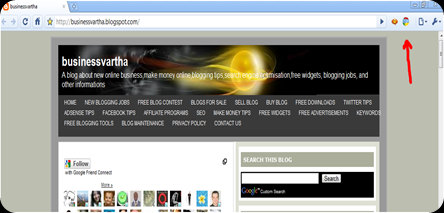
2. While the installation is going on the browser will ask for certain permissions about data that you are visiting a page. Once the installation is complete, then reopen the browser, and you can see a small tab, SEO on the right hand side corner of your browser. (Just look at the red arrow in the picture given below)

GOOGLE CHROME SEO EXTENSION

3. Now click on that “SEO” button. A popup will open that look like the one that given in the picture. You may enter the URL of your blog or website and click on “Go”. Within few seconds, you will get results about Search Engine Optimization Tools that can help you with Competitive Analysis, Keyword Research, Back link Checks, PageRank Checks and other daily SEO tasks.GOOGLE SEO

This Google Chrome extension receives information from various sources about the URL that you are analyzing through this toolMAjor sources include Archive.org, Alexa Rank, Compete Rank, CoralCDN, Ask, Baidu, Bing, Delicious, Digg, Dmoz, Google PageRank, MajesticSEO, Open Site Explorer, Quantcast, SEMRush, SEOmoz, Linkscape, StumbleUpon, Technorati, WebCite, Yandex Quotation Index, Yahoo.

4. Once you get the details about the URL you are analyzing, then plan your SEO activities, like link submission, and submit to other search engines. Later, do SEO analysis every week using this tool. Increase the number of back links and gain much higher page rank.

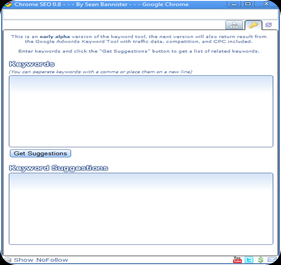
5. The Key word suggestion tool is another great feature of this extension. KEYWORDSYou may type some Keywords or the primary subject of your latest post in the first box. Then click on Get suggestions. You will get most popular keywords in the second box.

As an important way of Search Engine Optimization, it is better that you select some popular Keywords and focus more on them in that post.


Google is promising that this SEO extension will be under constant development to provide some great features like, integration with Google SERP, the ability to compare site ranking stats, side by side, Keyword Ranking Checker to check search rankings, On page Keyword Analysis, Integrate the Keyword Tool with the Google Adwords Keyword Tool to make keyword research faster, PPC Integration (Adwords, Adsense, Microsoft Adcenter, Yahoo Search Marketing), Support for Wolfram | Alpha, Better descriptions so any Web Designer / Developer can work with the tool, Google Analytics Integration, Google Chrome SEO Toolbar and allow Google Chrome SEO Add Ons so developers can contribute plugins.

So, what are you waiting for? Grab this extension and start your SEO ride.

Something to SEO:

Thursday, August 12, 2010

SEO FREE TOOL KIT FOR BLOGGERS

Search engine optimization or SEO is the most popular term in the blogging industry. A success  blogger always develop a perfect search engine optimization. In this post I would like to let you know about a Free SEO tool kit that will help you a lot to optimize your blog or website in an easy way. This free software can be installed in your computer and is absolutely free of charge.

This free software is very easy to use. Just go to this website and find the link to download. http://www.microsoft.com/web/seo/

SEO

After downloading, install it in your computer. If your computer doesn't have Microsoft Web Platform Installer, then you had to install it first and then install Free SEO Tool Kit using it. In most computers, both process will take place automatically. This Free SEO Tool Kit contains many tools that can be used according to your requirement. It can be downloaded from this link also. http://www.iis.net/download/SEOToolkit 

How Search Engine Optimization (SEO) Got Easy with Free SEO Tool Kit

IIS (Internet Information Services) SEO Toolkit

This Free SEO Tool Kit will help you to

  • Crawl a web site or blog
  • Analyze a web site or blog
  • Control how search engines access and display web content
  • Inform search engines about locations that are available for indexing
  • Manage the Robots.txt File
  • Manage Sitemap Files
  • Registering sitemaps with search engines
  • Improve the volume and quality of traffic to your web site from search engines
  • Improve Customer Experience

If you like to know more about the use of this software, then I suggest you to read

More to SEO:

Sunday, August 1, 2010

ADD REDDIT SHARE COUNT BUTTON IN YOUR BLOG POSTS

We are continuously bringing out the codes for different social media share count buttons such as, Google Wave Buttons, Retweet Buttons, Stumble Upon Buttons, Google Buzz buttons, Digg Buttons and Facebook share buttons. (Scroll down to get the code of all these social media share count buttons) In this post, we are bringing you the code of Reddit Share count buttons. Reddit is a source for what is new and popular on the web. Voting on favorite reddit will lift good posts up in the front page and thereby providing more traffic to your blog or website.

How to add Reddit share count buttons to your blog


Log in to Blogger Account, go to Layout, Edit HTML and check the box "Expand Widget Templates". Now, find any of this code in your  template. (Please make a backup copy of your template before doing any sort of editing)

<div class='post-header-line-1'/>

OR

<div class='post-header'/>

  
Then immediately after the above given code, paste the code given below. You may select any one of the below given Reddit share count button. Then copy and paste the code given there.

Reddit  Button Large

REDDIT BUTTON

<!--REDDITBUTTONCOUNTER-CODESTARTS-http://businessvartha.blogspot.com--><div style='float:right;padding:2px;margin-top:-4px;'><script src='http://reddit.com/static/button/button2.js' type='text/javascript'/></div><!--REDDITBUTTONCOUNTER-CODESTOPS-->


Reddit  Button Small

REDDIT BUTTON SMALL

<!--REDDITBUTTONCOUNTER-CODESTARTS-http://businessvartha.blogspot.com--><div style='float:right;padding:2px;margin-top:-4px;'><script src='http://reddit.com/static/button/button1.js' type='text/javascript'/></div><!--REDDITBUTTONCOUNTER-CODESTOPS-->


Reddit Button Compact

REDDIT BUTTON COMPACT

<!--REDDITBUTTONCOUNTER-CODESTARTS-http://businessvartha.blogspot.com--><div style='float:right;padding:2px;margin-top:-4px;'><script src='http://reddit.com/static/button/button3.js' type='text/javascript'/></div><!--REDDITBUTTONCOUNTER-CODESTOPS-->

Customization of code:

  • You can change the position of this button by changing the right to left or center.

After finishing the pasting of the code, check the preview of your blog. In the preview you can see whether the position of the Counter button is correct or not. Any problems? feel free to ask me..

More Buttons to Add:

ADD CONTINUOUS SCROLLING IMAGE WIDGET IN YOUR BLOG

One of the most renowned celebrity, Maya, Japanese model, actress,and writer, recently added a image slider widget in her blog. This widget displayed many beautiful photos of her achievement as World Super Model 2010, with links to her individual posts. This widget showed images one by one scrolling from one side to other. You may add the same widget to your blog, preferably under the header and link it to specific posts. This will attract the visitors and force them to travel through more posts. 

Want to see a demo? Click on the picture belowSCROLLING IMAGE 

How to add continuous Scrolling Image widget

STEP A
Login to your blogger account – Layout  – Page Element – Add Gadget – HTML / JavaScript

STEP B

Now copy the below given code and paste it in the ‘HTML / JavaScript’ box and save. Remember to change YOUR POST URL with the URL of  the post which you want to link the scrolling image. Also change YOUR IMAGE URL with the URL of the image which you want to scroll and display. The direction of the scrolling is coded as left. This direction can be changed either to right, or down according to your choice. It is better that you place this widget under the header of your blog.

<!—continuous scroll codes by businessvartha.blogspot.com -->
<marquee class="html-marquee" direction="left" behavior="scroll" scrollamount="8" onmouseover="this.stop();" onmouseout="this.start();" ><a href="YOUR POST URL" target="_blank"><img src="YOUR IMAGE URL"/></a></marquee><p style="font-family:verdana,arial,sans-serif;font-size:10px;"><a href="http://businessvartha.blogspot.com/2010/08/add-continuous-scrolling-image-widget.html
"/><span style="font-size: 60%">Get this Widget</span></a>
</p></!—continuous scroll codes end>


Other options to add in this widget:

In some templates, there is not much space under the header. In such cases it is ideal to give a box in which the image will scroll according to the direction you choose. But you must fix the size of the picture according to the box you are designing. 

If you wish to add a box to include your scrolling image widget, then the below given code must be added just between the first and second line of the above given code.

<style type="text/css">
.html-marquee {height:120px;width:900px;background-color:000000;border-width:4;border-style:dotted;border-color:000000;}
</style>

Areas to edit:

The border color and border style can be changes in this part of the code, border-width:4;border-style:dotted;border-color:000000. The border-style can be changed from dotted to dashed or solid to get different style for the border. The height, width and color of the box, can be changed in this part of the code according to . height:120px;width:900px;background-color:000000.

Code to add continuous Scrolling Image widget in a box

<!—continuous scroll codes by businessvartha.blogspot.com --><style type="text/css">
.html-marquee {height:120px;width:900px;background-color:000000;border-width:4;border-style:dotted;border-color:000000;}
</style>
<marquee class="html-marquee" direction="left" behavior="scroll" scrollamount="8" onmouseover="this.stop();" onmouseout="this.start();" ><a href="YOUR POST URL" target="_blank"><img src="YOUR IMAGE URL"/></a></marquee><p style="font-family:verdana,arial,sans-serif;font-size:10px;"><a href="http://businessvartha.blogspot.com/2010/08/add-continuous-scrolling-image-widget.html
"/><span style="font-size: 60%">Get this Widget</span></a>
</p></!—continuous scroll codes end>

If you have any doubt related to the installation or customization of this widget, please feel free to ask us.

Happy blogging………

More widgets to add

Thursday, July 8, 2010

ADD RELATED CONTENT FOR YOUR BLOG POSTS USING ZEMANTA

The much awaited Gadget, Zemanta  integrated to blogger,  that helps a blogger to add related contents like  latest news to learn more about the topic, link articles to improve the value of the post and to use pictures to make a post richer. Zemanta helps a blogger to add contextual suggestions of related articles, images, links and tags. Zemanta Gadget helps a blogger to save time and find amore accurate information related to the matters that he is preparing to post. Right now, I am very happy that the Zemanta Gadget on my live writer is showing some related images which I can use in this post with one click.

When you start writing a post, Zemanta automatically offers affiliate linking support which will help you to earn more money. Zemanta collects information from spam-free database of 10000 news sources and blogs and it has an additional copyright filtering of suggested images.

For using Zemanta no need of any signup process and it is 100% free of cost. If you are using blogger, then follow this simple steps to add it to your Dashboard, New post( Post editor) near Amazon Widget.

Click here to add Zemanta gadget. to your blog.

ZEMENTA Then select one of your blogs in the drop-down box, and click Add Zemanta. This will add the gadget to the post editor for your selected blog, and take you to a new post page.

Here is a video that describes from Google Youtube that Zemanta Gadget.


Zemanta is available in individual versions and downloadable versions. Zemanta supports Blogger, WordPress, TypePad, Movable Type, Drupal, Tumblr and email platforms Google Mail and Yahoo!Mail.

Visit Zemanta website Download and find the required plugins for your browser. The plugin for Windows Live writer will help you to integrate Zemanta Gadget with your Windows Live writer software.

So what are you waiting for? Post your article and Zemanta will recommend it to other writers when they write about the same topic. More links, more traffic, more income. Yes, Zemanta can change your blogging life.

More to add:

Blog Widget by LinkWithin