Stop PC Crashes with WinZip System Utilities

Enter your email address:

Wednesday, August 24, 2011

ADD FACEBOOK AND YAHOO FRIENDS TO GOOGLE PLUS IN FIVE MINUTES

This article will help you to add your Facebook friends to Google Plus. This require some easy steps to do and a Yahoo account. With the help of a Yahoo account, you can add your yahoo friends and Facebook friends at the same time. Simply follow the steps given below.

HOW TO ADD FACEBOOK  AND YAHOO FRIENDS TO GOOGLE PLUS

Step 1) Login to your Yahoo account and then go to Contacts tab and click on Import Contacts. (You can see a Facebook Icon/ Gmail Icon-look the picture given below)
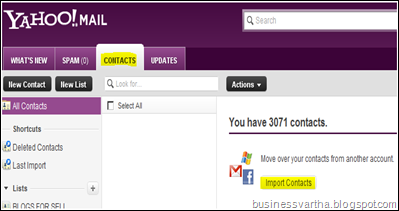
 facebook import

Step 2) Select Facebook button and start importing all Facebook friends to your Yahoo account. If you already logged in to your Facebook account in the same browser, then importing will start automatically. Otherwise, when the login screen of Facebook appears, login with your username and password. After completion of importing, all your Facebook friends will be added to your Yahoo contacts. You can see that your number of contacts increased.

Step 3) Now again open Yahoo mail, CONTACTS tab.  Click on Actions. Select Export all. Export as Yahoo! CSV, and save it on your Desktop.
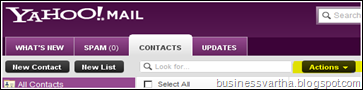
YAHOO MAIL EXPORT CONTACT

Step 4) Now login to your Google Plus account. Click on circles and then on “Find People”. Under that tab, click on “Upload Address Book”. Then select the Yahoo! CSV address book, that you have saved on your desktop as per Step 3.

GOOGLE PLUS ADD FACEBOOK


Step 5) Once the upload finished, you can see all those people are on the Circle dashboard. Click on each person and drag them to your desired circle. You can select many contacts at the same time and drag them on to your favorite circles.


Cool, isn’t it?


More to Read:

Tuesday, August 16, 2011

GOOGLE ADSENSE ADS ARE NOT APPEARING IN MY BLOG

I received one request of review from a friend who shocked seeing that Google Adsense ad in one of his blog is not appearing for last three days. All other four blogs belong to the same login ID of Google Adsense are showing ads properly. After login to his ID, I found that there is one Email from Google Adsense, stating that Adsense Ads are temporarily blocked in a blog (URL given there). The primary reason for such a ban was also given there. “AD MISLABELLING”. So, in this post I would like to explain some of those reasons in which a particular blog is being banned from displaying ads. Please remember that banning a particular blog doesn't means cancellation of an Adsense account. Your Adsense account will still remain active. 

Reasons for ban of a blog from displaying Google Adsense ads

GOOGLE ADSENSE ADS ARE NOT APPEARING IN MY BLOG

Offering any compensation to click Google Adsense Ads

Google may penalize you with a ban if you try to offer compensation or any incentive for clicks on ads.

Misleading labels for the Adsense gadgets or slots that display Adsense Ads.

According to the program policies of Google Adsense, directly or indirectly encouraging users to click Google ads is not allowed. When you are installing a Google Adsense slot, the label of that Ad unit must not be like, "Related links", "Recommended sites", "My favorite sites" or "Latest news"

Misleading directions or statements to clicks

If you have Google Adsense ad in your blog, then avoid using statements like "Feel free to click an ad", "Contribute to the cause”, visit an ad", "Help keep this site running, check out our sponsors", "We need a new server. Support us!" or “Meet our sponsors”. Google Adsense ads are aiming real value visitors because of its Pay Per Click  method of payment.

Bringing Unnatural attention to Google Adsense ad units

Never keep flashy animations that draw a visitor’s eyes to ads , never put arrows or other symbols pointing to Google ads, or never keep images that may look similar to Google Ads are create unnatural attention. 

Placing Ad unit that may lead to accidental clicks

I have seen in some blogs in which the Adsense ad unit is placed so close to the header buttons, play buttons, download buttons, games, drop-down boxes etc. Google Adsense may ban your blog from displaying ads as this may lead to accidental clicks.


More to Read:

Blog Widget by LinkWithin